1. Log in to your cPanel account.
2. In the Databases section, click on MySQL Databases.

3. Under Current Databases, you can see a list of all your databases. Locate the database you want to remove and click on Delete.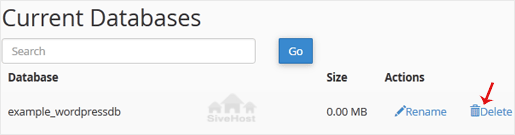
4. Click on Delete Database.

1. Log in to your cPanel account.
2. In the Databases section, click on MySQL Databases.
3. Under Current Databases, you can see a list of all your databases. Locate the database you want to remove and click on Delete.
4. Click on Delete Database.
1. Log in to your cPanel account.2. In the Databases section, click on MySQL Databases. 3. In the...
1. Log in to your cPanel account. 2. In the Databases section, click on MySQL Databases. 3....
1. Log in to your cPanel account. 2. In the Databases section, click on MySQL Databases. 3....
1. Log in to your cPanel account.2. In the Databases section, click on phpMyAdmin. 3. Click on...
1. Log in to your cPanel account.2. In the Databases section, click on phpMyAdmin.3. Click the...
Yɛn abenfoɔ bɛdan wo sait no dwoodwoo a bere biara nni hɔ a wɔde bɛgyae - a wɔrentua hwee. Hassle-free migration a yɛn kuw no di ho dwuma sɛnea ɛbɛyɛ a wubetumi de w’adwene asi w’adwuma so.

Copyright © 2026 Creative Matrix. All Rights Reserved.