1. Log in to your cPanel account.
2. In the Databases section, click on MySQL Databases.

3. Under Current Databases, you can see a list of all your databases. Locate the database you want to remove and click on Delete.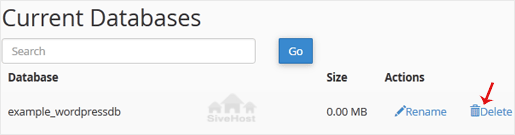
4. Click on Delete Database.

1. Log in to your cPanel account.
2. In the Databases section, click on MySQL Databases.
3. Under Current Databases, you can see a list of all your databases. Locate the database you want to remove and click on Delete.
4. Click on Delete Database.
1. Log in to your cPanel account.2. In the Databases section, click on MySQL Databases. 3. In the...
1. Log in to your cPanel account. 2. In the Databases section, click on MySQL Databases. 3....
1. Log in to your cPanel account. 2. In the Databases section, click on MySQL Databases. 3....
1. Log in to your cPanel account.2. In the Databases section, click on phpMyAdmin. 3. Click on...
1. Log in to your cPanel account.2. In the Databases section, click on phpMyAdmin.3. Click the...
Kwararrunmu za su canja wurin rukunin yanar gizon ku amintacce tare da lokacin faɗuwar rana - ba tare da ƙarin farashi ba. Ƙaura marar wahala da ƙungiyarmu ta sarrafa don ku iya mai da hankali kan kasuwancin ku.

Copyright © 2026 Creative Matrix. All Rights Reserved.